Externalized Authentication Quick Start
Quick Start guide
This guide walks you through your first session with Navidrome, from verifying your installation to playing your first song.
Make sure you’ve completed the installation for your platform. Verify these items before proceeding:
Before creating your admin user, confirm Navidrome started successfully.
Check the logs for a successful startup message:
docker logs navidrome
sudo journalctl -u navidrome -f
Check the log file in your Navidrome installation folder, or use Event Viewer for service logs.
cat /opt/navidrome/navidrome.log
Or check the path you specified in your LaunchAgent plist.
What success looks like: You should see log entries showing Navidrome starting up and beginning to scan your music folder. Look for messages like:
Creating DB Schema
Scanner: Starting scan
Navidrome server is ready!
If you see errors about missing folders or permission denied, see Troubleshooting below.
Open your browser and navigate to http://localhost:4533 (or your custom address/port).
You should see the admin user creation screen:
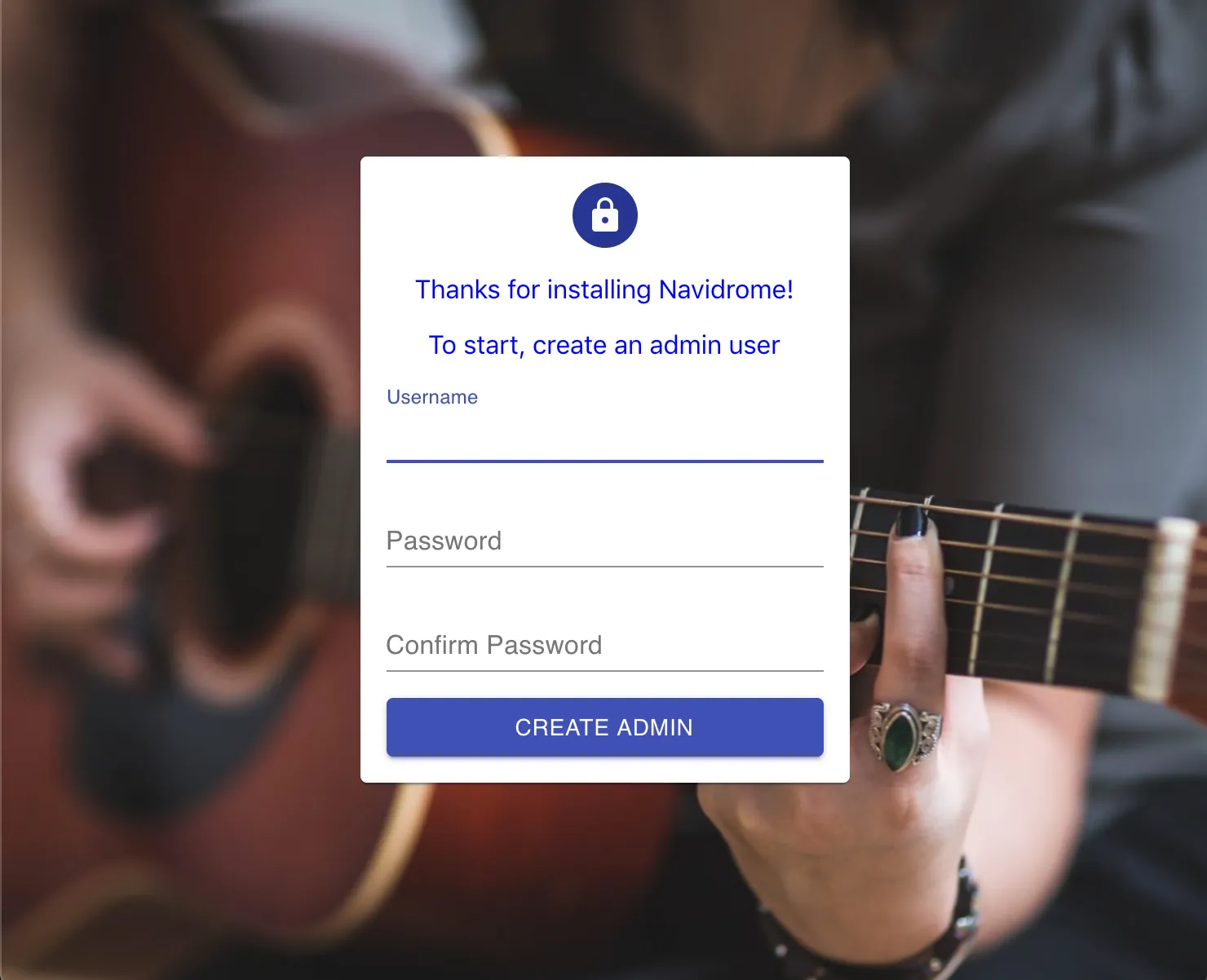
Fill in your desired username and password, confirm the password, and click “Create Admin”.
What success looks like: After clicking the button, you’ll be logged in and see the Navidrome interface. The sidebar will show menu items like “Albums”, “Artists”, “Playlists”, etc.
Navidrome scans your music folder in the background. This takes time — the duration depends on your library size:
| Library Size | Approximate Scan Time |
|---|---|
| < 1,000 songs | Under 1 minute |
| 1,000 - 10,000 songs | 1-5 minutes |
| 10,000 - 50,000 songs | 5-15 minutes |
| 50,000+ songs | 15+ minutes |
What success looks like: Albums and artists will gradually appear in the interface. You can monitor progress in the logs — look for messages showing files being processed.
Once some music appears:
Congratulations! You’re now streaming your own music with Navidrome. 🎉
Check scan progress in the logs. If you see ongoing scan activity, just wait — large libraries take time.
Verify your music folder path:
-v /path/to/music:/music:ro)Check file formats. Navidrome supports MP3, FLAC, AAC, OGG, OPUS, WMA, APE, WavPack, and more. Files must have proper audio metadata (tags) to appear correctly.
The Navidrome process must have read access to your music folder.
Ensure the user directive matches the owner of your music folder:
user: 1000:1000 # Should match: ls -n /path/to/music
# Check current permissions
ls -la /path/to/music

# If needed, ensure the navidrome user can read:
sudo chmod -R o+rX /path/to/music
# Or add the navidrome user to the appropriate group
Right-click your music folder → Properties → Security tab. Ensure the service account has Read permissions.
# Check permissions
ls -la /path/to/music

# Grant read access if needed
chmod -R o+rX /path/to/music
If using Full Disk Access, ensure Terminal or the Navidrome process has the permission in System Settings → Privacy & Security.
http://localhost:4533-p 4533:4533)Navidrome imports .m3u playlists from your music folder, but only after an admin user exists. If playlists aren’t appearing:
touch /path/to/music/*.m3u
user: 1000:1000 in docker-compose should match your music folder owner. Check with ls -n /path/to/musicdocker logs -f navidrome to follow logs in real-timedocker-compose restart navidrome to apply config changessystemctl status navidrome to check service healthausearch -m avc or system logsMusicFolder = "C:\\Music")sudo xattr -d com.apple.quarantine /path/to/navidromeNow that Navidrome is running, explore these features:
Still having trouble? Check the full documentation or reach out to the community for help.
Quick Start guide
Was this page helpful?
Glad to hear it! Please tell us how we can make it even better.
Sorry to hear that. Please tell us how we can improve.