What success looks like: You should see log entries showing Navidrome starting up and beginning to scan your music folder. Look for messages like:
Creating DB Schema
Scanner: Starting scan
Navidrome server is ready!
If you see errors about missing folders or permission denied, see Troubleshooting below.
Step 2: Create Your Admin User
Open your browser and navigate to http://localhost:4533 (or your custom address/port).
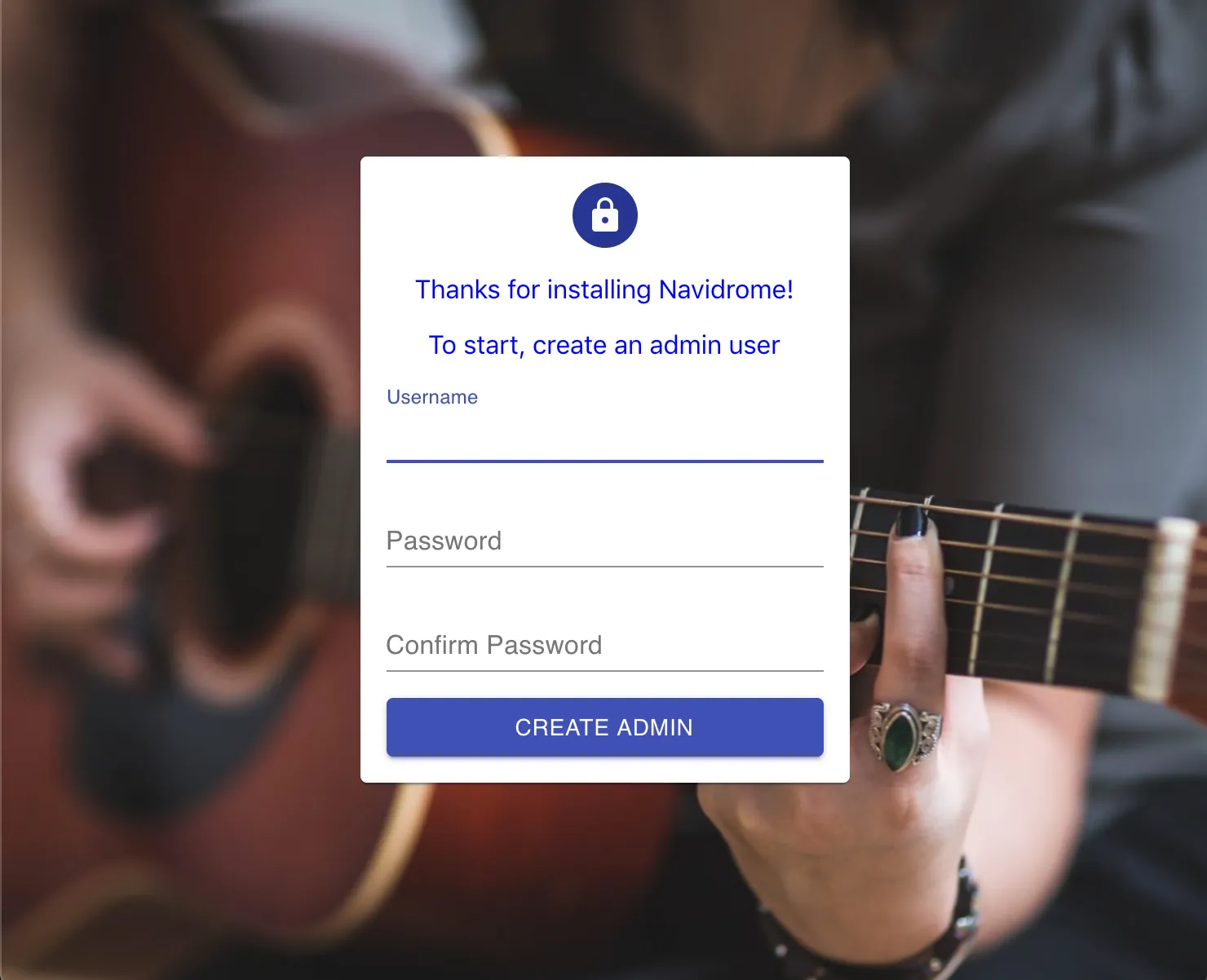
You should see the admin user creation screen:
Fill in your desired username and password, confirm the password, and click “Create Admin”.
What success looks like: After clicking the button, you’ll be logged in and see the Navidrome interface. The sidebar will show menu items like “Albums”, “Artists”, “Playlists”, etc.
Step 3: Wait for Your Music to Appear
Navidrome scans your music folder in the background. This takes time — the duration depends on your library size:
Library Size
Approximate Scan Time
< 1,000 songs
Under 1 minute
1,000 - 10,000 songs
1-5 minutes
10,000 - 50,000 songs
5-15 minutes
50,000+ songs
15+ minutes
What success looks like: Albums and artists will gradually appear in the interface. You can monitor progress in the logs — look for messages showing files being processed.
Tip
You can start browsing and playing music as soon as any content appears — you don’t need to wait for the full scan to complete.
Step 4: Play Your First Song
Once some music appears:
Click on “Albums” in the sidebar
Click on any album cover
Click the play button on any track
Congratulations! You’re now streaming your own music with Navidrome. 🎉
Troubleshooting
Music Not Appearing
Check scan progress in the logs. If you see ongoing scan activity, just wait — large libraries take time.
Verify your music folder path:
Ensure the path in your configuration matches where your music files actually are
Check that paths are case-sensitive on Linux/macOS
For Docker: verify your volume mount is correct (e.g., -v /path/to/music:/music:ro)
Check file formats. Navidrome supports MP3, FLAC, AAC, OGG, OPUS, WMA, APE, WavPack, and more. Files must have proper audio metadata (tags) to appear correctly.
Permission Problems
The Navidrome process must have read access to your music folder.
Ensure the user directive matches the owner of your music folder:
user: 1000:1000 # Should match:ls -n /path/to/music
# Check current permissionsls -la /path/to/music
# If needed, ensure the navidrome user can read:sudo chmod -R o+rX /path/to/music
# Or add the navidrome user to the appropriate group
Right-click your music folder → Properties → Security tab. Ensure the service account has Read permissions.
# Check permissionsls -la /path/to/music
# Grant read access if neededchmod -R o+rX /path/to/music
If using Full Disk Access, ensure Terminal or the Navidrome process has the permission in System Settings → Privacy & Security.
Cannot Access Navidrome in Browser
Verify the service is running (see Step 1 above)
Check you’re using the correct URL:
Default: http://localhost:4533
If accessing remotely, use your server’s IP address
If you configured a custom port, use that instead
Check firewall settings — port 4533 (or your custom port) must be open
For Docker: ensure the port mapping is correct (-p 4533:4533)
Playlists Not Importing
Navidrome imports .m3u playlists from your music folder, but only after an admin user exists. If playlists aren’t appearing:
Make sure you’ve created the admin user first
Update the playlist file timestamps to trigger reimport:
touch /path/to/music/*.m3u
Wait for the next scan cycle, or trigger a manual scan from the UI
Platform-Specific Tips
User permissions: The user: 1000:1000 in docker-compose should match your music folder owner. Check with ls -n /path/to/music
Volume paths: Use absolute paths, not relative ones
Logs: Use docker logs -f navidrome to follow logs in real-time
Restart:docker-compose restart navidrome to apply config changes
Service management: Use systemctl status navidrome to check service health
SELinux/AppArmor: These may block access to music folders. Check with ausearch -m avc or system logs
Socket permissions: If using Unix sockets for reverse proxy, ensure correct permissions
Service account: The service runs as Local System by default. Change to your user account if you need access to network drives
Path format: Use Windows paths in navidrome.toml (e.g., MusicFolder = "C:\\Music")
Firewall: Windows Defender may block the port — add an exception if needed
Quarantine errors: If you see “navidrome is damaged”, run: sudo xattr -d com.apple.quarantine /path/to/navidrome
Full Disk Access: May be required for some music folder locations
LaunchAgent logs: Check the paths in your plist file match reality
Next Steps
Now that Navidrome is running, explore these features:
Multi-Library Support: Organize multiple music collections (audiobooks, family libraries) with separate access controls
Externalized authentication allows you to use an external system to handle authentication for Navidrome.
Instead of managing user credentials in Navidrome itself, the responsibility is delegated to an external authentication service.
The external system comprises a reverse proxy (nginx, Caddy, Traefik, etc.) and an authentication service (Authelia, Authentik, or any other authentication service that works with your reverse proxy).
For Beginners
If you’re new to reverse proxies, they act as intermediaries between your users and Navidrome.
They can handle things like SSL certificates, load balancing, and authentication before requests reach Navidrome.
┌─────────────┐     ┌─────────────┐     ┌─────────────┐
│    User     │ --> │   Reverse   │ --> │  Navidrome  │
│   Browser   │     │    Proxy    │     │    Server   │
└─────────────┘     └─────────────┘     └─────────────┘
                          │
                          V
                    Authentication
                        Service
Navidrome supports a header-based mechanism to retrieve data about the authenticated user from the reverse proxy.
This approach is usually called “reverse proxy authentication”, and offers several benefits:
Increased flexibility: Leverage authentication methods not supported by Navidrome (LDAP, OAuth, 2FA, etc.)
Single Sign-On (SSO): Users can login once and access multiple services
Centralized user management: Manage all your users in one place
Security Note
Navidrome works out of the box behind a reverse proxy without enabling externalized authentication.
You only need to enable externalized authentication if you want the proxy to handle the authentication.
In other cases, enabling the feature without securing the reverse proxy configuration can leave your Navidrome setup vulnerable to impersonation attacks.
How It Works
Your reverse proxy authenticates the user
The proxy adds a header with the username (e.g., Remote-User: john) to the request, then forwards it to Navidrome
Navidrome checks that the request comes from a trusted IP (using ExtAuth.TrustedSources, more on that below)
If trusted, Navidrome uses the username from the header to identify the user
If the user doesn’t exist in Navidrome’s database, a new account is created automatically
Quick Start
Here’s the basic process for setting up externalized authentication:
Configure your reverse proxy with authentication.
The integration depend on the proxy and authentication service.
Configure the reverse proxy to pass the username to Navidrome via an HTTP header.
It should additionally be configured to prevent clients from setting the header themselves.
Configure Navidrome to trust your reverse proxy as authentication source.
(Optional) Configure the reverse proxy to allow unauthenticated requests on specific paths.
This is only needed for some Navidrome features.
Test the setup
Basic Navidrome Configuration
By default, externalized authentication is disabled.
To enable it:
Set the ExtAuth.TrustedSources option to tell Navidrome which IP address to trust.
Optionally customize the ExtAuth.UserHeader option if your proxy uses a different header than the default Remote-User
In your Navidrome configuration:
## IP address of your reverse proxy (CIDR notation)
ND_EXTAUTH_TRUSTEDSOURCES=192.168.1.10/32
## Optional: Change the header if needed (this is the default)
ND_EXTAUTH_USERHEADER=Remote-User
Security Note
Only add IP addresses you trust to the trusted sources.
Navidrome will accept the username from any requests coming from these addresses without further verification.
Special Value for UNIX Sockets
If you’re using UNIX sockets (with the Address option), use @ in your ExtAuth.TrustedSources option to accept the authentication header of requests from the socket:
The first user authenticated through the proxy will be granted admin privileges (just like the first user in a fresh installation)
New users are created automatically with random passwords
You can also consider setting EnableUserEditing=false to prevent users from changing their Navidrome passwords (since they’re managed by your auth service):
# Disable password editing in Navidrome
ND_ENABLEUSEREDITING=false
Reverse Proxy Integration
The integration depends on your chosen reverse proxy and authentication service, so you should first get familiar with their documentation.
Some Navidrome features also require specific configuration of your reverse proxy:
Public Shares: If you plan to use Navidrome’s sharing feature (for creating public links to your library), you need to configure your reverse proxy to bypass authentication for URLs starting with /share/, allowing unauthenticated access to the public shares.
Subsonic Clients: For a basic setup, you can let Navidrome handle the Subsonic authentication by configuring your reverse proxy to bypass authentication for URLs starting with /rest/.
Your users will have to set a password in Navidrome and use it with their Subsonic client (note that this is incompatible with EnableUserEditing=false).
We give some example configurations for popular reverse proxies.
You can adapt these to your specific setup.
Note that the examples might get outdated, you should always double-check the official documentation of your reverse proxy and authentication service.
Example: Caddy with Authentik
This example shows Navidrome behind Caddy with Authentik for authentication.
This example uses Traefik with Authelia for authentication, using Docker Compose.
services:authelia:image:authelia/authelia:4.38.8labels:# Login pagetraefik.http.routers.authelia.rule:Host(`auth.example.com`)traefik.http.routers.authelia.entrypoints:https# Authentication middlewaretraefik.http.middlewares.authelia.forwardauth.address:http://authelia:9091/api/verify?rd=https://auth.example.com/traefik.http.middlewares.authelia.forwardauth.authResponseHeaders:Remote-Usernavidrome:image:deluan/navidrome:0.52.0labels:# Main Navidrome access with web authenticationtraefik.http.routers.navidrome.rule:Host(`music.example.com`)traefik.http.routers.navidrome.entrypoints:httpstraefik.http.routers.navidrome.middlewares:authelia@docker# Authentication bypass for share and subsonic endpointstraefik.http.routers.navidrome-public.rule:Host(`music.example.com`) && (PathPrefix(`/share/`) || PathPrefix(`/rest/`))traefik.http.routers.navidrome-public.entrypoints:httpsenvironment:# Trust all IPs in Docker network - use more specific IP if possibleND_EXTAUTH_TRUSTEDSOURCES:0.0.0.0/0
Be careful with dynamic IP addresses in Docker environments
Ensure that your reverse proxy is properly configured to remove the authentication header if set by clients (some, but not all, do it by default; some do it by default only for specific header names)
Troubleshooting
Common issues and solutions:
Authentication not working
Check that your reverse proxy IP is in the ExtAuth.TrustedSources option and in CIDR format: X.X.X.X/32
Verify the correct that header is being sent by the reverse proxy (Remote-User by default)
Check the proxy logs to confirm that the authentication is successful
New users not being created
Ensure that the header contains the correct username
Check the Navidrome logs for any errors
Subsonic clients can’t connect
Verify your proxy configuration for the /rest/* endpoint
Check if your client supports the authentication method you’re using
Shared links not working
Make sure your proxy allows unauthenticated access to /share/* URLs
FAQ
Q: Can I use this with my existing OAuth provider? A: Yes, as long as your reverse proxy can integrate with your OAuth provider and pass the username to Navidrome.
Q: What if I want to switch back to Navidrome’s authentication? A: Remove or comment out the ExtAuth.TrustedSources configuration.
Q: Can I mix authentication methods? A: Yes, Navidrome will fall back to standard authentication if the reverse proxy header is not present or the request’s source not trusted.